Why Your Family Shouldn’t Wait For The Next Attack To Plan For Internet Safety
Your children are very likely online right now. Perhaps they are talking to friends or watching videos, playing games. And, while technology has incredible potential for learning and connection, there are also very real dangers that many parents don’t understand.
The truth is, for most families, there is no clear roadmap to internet safety. They wing it. They respond to problems as they emerge, rather than preventing them from arising in the first place.
This article provides five usable, battle-tested (by real families) strategies for keeping kids safe online even while you let them benefit from the magic of tech. These aren’t theoretical ideas from people who don’t have kids. These are practical solutions that succeed in a messy home with many devices and children at different ages.
Let’s jump right in and solve your family’s internet safety situation for once and for all.
The Real Dangers Out There (And Why Balance Matters)
You’ll need to know what it is you want to protect your family from, before we move on with the solutions.
Some 40 percent of kids are cyberbullied at some point. Predators are making contact through social media and gaming sites. It’s only a few clicks from any device to objectionable material. Young people are victims of identity theft as they have a clean slate where their credit history is concerned. And too much time on screens is quite literally altering how young brains work.
But here’s the rub: Banning technology outright just doesn’t cut it anymore. Children need digital skills for school and their future careers. They must learn to navigate online space safely, not avoid it altogether.
The answer is not between no restrictions and total lockdown. It’s finding the sweet middle ground where your family uses technology in healthy, safe ways.
Tactic #1: Design a Family Technology Agreement That’s Actually Effective
Most families are attempting to make rules on the fly. “Put your phone away at dinner” or “No screens after 9 p.m.” are a nice thought, but such rules fall apart in the absence of an actual agreement.
A Family Technology Agreement is something else. It’s a document everyone contributes to and everyone signs.
Your Agreement in a Weekend
Call a meeting, to begin with. Make it relaxed, not confrontational. Make it clear you’re making rules together, not just having them handed down from you.
Have each household member express their worries about technology. Your 10-year-old can fret over being left out of group chats. Your teenager may be left feeling like you don’t trust them. It could be that your spouse is worried about work-life balance. Write everything down.
Next, brainstorm solutions together. Here’s what to include:
Tech-Free Zones and Times: Establish where in the home is free of screens. The dinner table, bedrooms after bedtime and family movie nights are popular choices for most families.
Age-Appropriate Rules: What is appropriate for a 7-year-old will not be the same for your 15-year-old. Explain what each child will be able to access and when.
Consequences: What are the consequences when a rule is broken? Make consequences fair and consistent. Taking away device time is almost always more effective than punishment.
Adult Accountability: The same goes for parents. If kids aren’t allowed to text at dinner, the same rule needs to apply to you.
The Secret Ingredient: Regular Updates
Your Family Technology Agreement should be written in pencil. Review it every three months. As children grow older, and more responsible, adjust the rules. It demonstrates that you trust them and that the agreement is still applicable.
One family I know puts their agreement on the refrigerator. Another stores it in a shared Google Doc. Find what works for your household.

Tactic #2: Master Parental Controls Without Becoming the Tech Police
Parental controls are maligned. To children, they are spying tools. Parents feel guilty using them. But when you use them right, they’re protection, not punishment.
Parental controls are akin to training wheels on a bicycle. You won’t keep these on forever, but they prevent crashes while kids learn how to balance.
Creating Controls That Actually Do Something
Each device and platform uses different controls. Here’s your quick-start guide:
For Smartphones and Tablets:
- iPhone: Set app limits, content filters and screen time with Screen Time
- Android: Google Family Link offers similar controls, along with location tracking
- Set up these controls BEFORE handing devices to kids
For Gaming Consoles:
- Parental control apps for PlayStation, Xbox and Nintendo Switch
- Restrict who your kids can talk to while playing online games
- Set a spending limit for in-app purchases
For Computers:
- Phone controls are similar to Windows Family Safety and Mac Screen Time
- Use browser-level filters for an extra layer of protection
- For thorough monitoring, look into software such as Bark or Qustodio
The Trust Conversation
Here’s how to implement parental controls without kids feeling as though they’re being spied on:
Be specific about what you’re tracking and why. Explain that it’s temporary. Show them how to manage their freedom by earning it through trust and responsibility.
One mother told her 13-year-old daughter: “I’m not checking your messages because I don’t trust you. I’m protecting you from people I don’t trust.” That simple reframe changed everything.
What to Monitor (And What to Ignore)
Do not comb through every message your teenager sends. That’s invasive and damages trust. Instead, monitor for:
- Messages from unknown contacts
- Inappropriate images being sent or received
- Signs of cyberbullying
- Excessive screen time patterns
- App downloads and web searches
Most monitoring software flags concerning content automatically. There is no need to manually examine everything.
Tactic #3: Build Digital Literacy Instead of Digital Walls
The best tool to protect yourself online isn’t software. It’s teaching your children to critically read what they’re seeing online.
Digital literacy means knowing how the internet works, recognizing who may be trying to manipulate you, understanding your privacy rights, and making smart choices without parents looking over your shoulder.
Teaching Kids to Spot Online Dangers
Start these conversations early. Even 6-year-olds can learn basic concepts.
For Younger Kids (Ages 5-9): Play the “real or fake” game using images and videos you find online. Show them how not everything that is shared online is true. Establish some simple rules: Never share your full name, address or the name of your school. Never meet someone from online in person without a parent present.
For Pre-Teens (Ages 10-12): Explain how social media algorithms function. Show them how companies gather information on them. Teach them to identify clickbait, scams and offers that are too good to be true. Practice what to do if something online bothers them.
For Teenagers (Ages 13+): Talk about digital footprints and your online reputation. Discuss what colleges and employers look for on social media. Cover serious issues like sexting consequences, deepfakes and online radicalization. Model healthy social media habits as a family.
The Role-Playing Method That Works
Don’t just lecture. Practice real scenarios:
“Your friend sends you a link that says ‘OMG you need to watch this!’ but it’s from a site you have never heard of. What do you do?”
“One of your gaming partners requests your phone number so you can coordinate better. They seem nice. What’s your response?”
“You see a post making fun of a classmate. Your friends are all commenting. What do you do?”
Practicing these scenarios helps children prepare for real-life choices. They aren’t taken by surprise when things go wrong.
Creating Content, Not Just Consuming It
Children who make content for the web understand the internet differently from those who are solely consumers. They get to see how things work behind the scenes.
Encourage your kids to:
- Start a blog about their passion
- Create videos or artwork to share
- Learn basic coding or website design
- Contribute to online communities positively
Creating content teaches responsibility. When children publish their work online, they learn to consider their audience and their digital reputation.
Tactic #4: Schedule Tech-Free Family Time That People Enjoy
Balance isn’t about restricting technology. It’s about ensuring that offline activities are so much fun that kids will engage in them voluntarily.
Most families fail at tech-free time because they make it feel like punishment. “Put down your phones” followed by awkward silence doesn’t work.
Planning Activities Better Than Screen Time
The secret is providing something that’s actually more interesting than scrolling through social media.
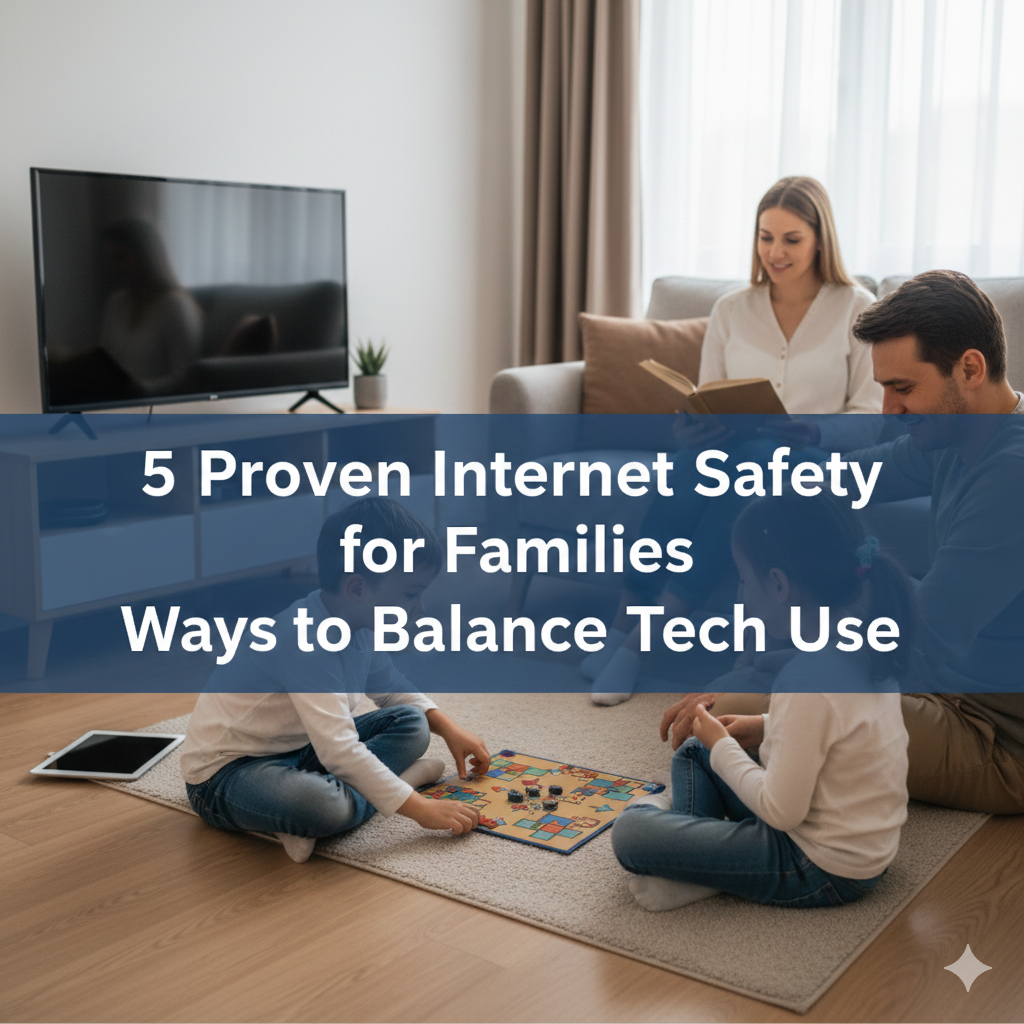
Weekly Tech-Free Night: Pick one night where all devices go in a basket at 6 PM. Plan something everyone looks forward to. Game nights, cooking together, backyard campfires, building projects or family bike rides all work.
The key is consistency. Same night every week. It becomes tradition.
Daily Connection Points: You don’t need hours. Even 20 minutes of genuine face-to-face time can make a difference. Try:
- Morning breakfast conversation without phones
- After-school snack time for talking about the day
- Bedtime reading or chatting
- Weekend morning pancakes
Special Monthly Adventures: Once a month, do something bigger. Visit a new place. Try a new restaurant. Go hiking. Take a day trip. These memories become family stories you’ll reference for years.
The Phone Basket Strategy
Here’s a game-changer: Get a basket or charging station in a central location. When family time starts, everyone (including parents) puts their phone in it.
Make it visual. Make it fair. Make it non-negotiable.
One family uses a wooden box they decorated together. Another uses a charging drawer in the kitchen. The physical act of putting devices away helps everyone mentally disconnect.
What About Homework and Necessary Screen Time?
Obviously, kids need devices for schoolwork. Build this into your schedule. Homework time is homework time. Recreational screen time comes after responsibilities.
Use timers. “You have 30 minutes of free screen time after homework.” When the timer goes off, devices get put away without argument.
Tactic #5: Stay One Step Ahead of Platform Changes and Trends
The internet changes fast. New apps, new trends and new dangers pop up constantly. Safety strategies that worked last year might not work today.
Staying informed doesn’t mean becoming a tech expert. It means paying attention to what your kids are actually doing online.
Apps and Platforms You Need to Know About Right Now
Here’s what’s popular with kids in 2024-2025:
Social Media: TikTok, Instagram, Snapchat and Discord dominate. Each has different risks. TikTok’s algorithm can lead kids down concerning rabbit holes. Instagram comparison culture affects mental health. Snapchat’s disappearing messages create privacy concerns. Discord’s chat servers can expose kids to strangers.
Gaming: Roblox, Fortnite, Minecraft and Among Us aren’t just games. They’re social platforms where kids communicate with other players. Some games have better moderation than others.
Communication: WhatsApp, Signal and iMessage group chats create drama. Kids face pressure to respond immediately and feel left out when excluded from groups.
AI Tools: ChatGPT and similar AI assistants are being used for homework. Kids need to understand academic integrity around AI use.
How to Keep Up Without Losing Your Mind
You don’t need to use every app your kids use. But you should know they exist and understand their basic risks.
Monthly Check-Ins: Once a month, ask your kids to show you what they’re into online. Not as an interrogation. As genuine interest. “What’s funny on TikTok this week?” or “What games are your friends playing?”
Follow Parent Safety Accounts: Several organizations share timely updates about online safety. Follow Common Sense Media, ConnectSafely, and the Internet Safety 101 podcast. They explain new platforms and dangers in plain English.
Join Parent Groups: Connect with other parents at your kids’ school. They’re dealing with the same issues. Share what you learn.
The Trend Cycle You Need to Know
Online trends move in predictable patterns:
Something new launches. Early adopters (usually teenagers) discover it. It becomes popular. Adults start using it. Teenagers move to the next new thing.
By the time you hear about an app, your kids might already be onto something else. That’s okay. The skills you teach them apply across platforms.
Focus on principles, not specific apps. “Don’t share personal information” works on TikTok, Instagram, or whatever comes next.

Creating Your Family’s Internet Safety Action Plan This Week
You’ve learned five strategies. Now let’s turn them into action steps you can complete this week.
Monday: Call a family meeting to discuss creating your Family Technology Agreement. Get everyone’s input. Don’t finalize anything yet, just start the conversation.
Tuesday-Wednesday: Research and set up parental controls on all family devices. Take your time. Do it right.
Thursday: Have the second family meeting. Finalize your Technology Agreement. Everyone signs it. Print it or save it somewhere visible.
Friday: Plan your first official tech-free family night for the weekend. Get everyone excited about it.
Weekend: Execute your tech-free activity. Evaluate how it went. Make adjustments for next time.
By next week, you’ll have a complete internet safety system in place. Not perfect, but functional. You can refine it over time.
Beyond Rules: Building Digital Wisdom
The ultimate goal isn’t controlling your kids’ internet use forever. It’s teaching them to control themselves.
As kids demonstrate responsibility, gradually reduce restrictions. This teaches them that trust is earned and that good choices lead to more freedom.
Some families use a leveling system. Level 1 has strict controls and frequent check-ins. As kids show good judgment, they move to Level 2 with more independence. By Level 3, they’re self-monitoring with minimal parental involvement.
This approach motivates kids to make better choices. They see internet safety as a path to more freedom, not just a bunch of annoying rules.
Remember that mistakes will happen. Your child will click a bad link. They’ll spend too much time on their phone. They’ll share something they shouldn’t. These aren’t failures. They’re learning opportunities.
When mistakes happen, respond with curiosity instead of anger. “What happened? What did you learn? How can we prevent this next time?” This keeps communication open so kids come to you when bigger problems arise.
Internet Safety Resources You Can Use Today
Several organizations offer free resources for families:
Common Sense Media provides age-based reviews of apps, games and movies. Their guides explain what parents need to know about popular platforms.
NetSmartz by the National Center for Missing & Exploited Children offers interactive videos and games that teach kids about internet safety.
Google’s Be Internet Awesome program includes fun activities and lessons for elementary-aged children.
The Cyber Civil Rights Initiative helps families dealing with online harassment or privacy violations.
ConnectSafely publishes quick guides for parents about new apps and platforms as they become popular.
For more comprehensive guidance and resources on protecting your family online, visit the Internet Safety Guide for expert tips and strategies.
Bookmark these sites. Check them quarterly for updates. Share helpful articles with your kids when appropriate.
Measuring Success: How to Know If Your Plan Is Working
How do you know if your internet safety strategies are effective?
Look for these signs:
Your kids come to you with questions or concerns about things they see online. This means they trust you and see you as a resource, not just an enforcer.
Family arguments about screen time decrease. Everyone knows the expectations and consequences.
You observe your kids making smart choices independently. They close inappropriate content without being told. They question suspicious messages. They balance screen time on their own.
Your family genuinely enjoys tech-free time together. It’s not a battle anymore.
Kids demonstrate increasing digital literacy. They recognize manipulation, protect their privacy, and think critically about online content.
If you’re not seeing these signs after a few months, adjust your approach. Maybe your rules are too strict or too loose. Maybe you need more conversations and fewer controls. Maybe you need to model better behavior yourself.
The Long Game: Preparing Kids for Digital Independence
Your job isn’t to protect your kids from the internet forever. It’s to prepare them to navigate it safely when you’re not watching.
Think about internet safety like teaching them to drive. You don’t just hand them keys at 16 and hope for the best. You teach them gradually. They learn rules in driver’s ed. They practice with you in the car. They drive with restrictions before getting full freedom.
Digital parenting works the same way. Start with close supervision and clear rules. Gradually reduce oversight as they demonstrate good judgment. Eventually, they’re independently making smart choices.
The families who succeed at this start early and stay consistent. They talk about internet safety regularly, not just when problems happen. They adjust their approach as kids grow. They admit when they don’t know something and learn together with their kids.
Most importantly, they remember that perfection isn’t the goal. Progress is.
Your Family’s Digital Future Starts Today
Internet safety isn’t about preventing your family from enjoying technology. It’s about making sure technology enhances your life instead of dominating or endangering it.
The five strategies in this article give you a complete framework. Create a Family Technology Agreement. Use parental controls wisely. Teach digital literacy. Schedule meaningful tech-free time. Stay informed about online trends.
Each strategy reinforces the others. The agreement sets expectations. Controls provide guardrails while kids learn. Digital literacy builds judgment. Tech-free time strengthens family bonds. Staying informed lets you adjust as needed.
Start small. You don’t need to implement everything perfectly this week. Pick one strategy to focus on first. Build momentum. Add the next strategy when the first one feels solid.
The internet isn’t going anywhere. Your kids will spend significant portions of their lives online. The question isn’t whether they’ll use technology, but whether they’ll use it safely, healthily, and wisely.
Give them that gift. Start building your family’s internet safety plan today.
Frequently Asked Questions
What age should I start teaching internet safety to my children?
Start as soon as they begin using devices, typically around age 4-5. Early lessons are simple: never share your name with strangers online, ask permission before downloading apps, and tell an adult if something makes you uncomfortable. As kids grow, lessons become more sophisticated. By age 7-8, teach them about privacy settings and appropriate online behavior. Teenagers need conversations about digital reputation, sexting consequences, and online relationships.
How much screen time is appropriate for different ages?
The American Academy of Pediatrics recommends no screen time for children under 18 months (except video chatting), one hour daily for ages 2-5, and consistent limits for older children. For school-aged kids, 1-2 hours of recreational screen time daily is reasonable. Teenagers can handle more but still need limits. Focus on content quality and balance with other activities rather than just counting minutes. Educational screen time, video calls with relatives, and creative projects don’t need the same restrictions as social media scrolling.
Should I read my teenager’s text messages?
Generally, no. Reading every message invades privacy and damages trust. However, you can monitor for red flags using parental control software that alerts you to concerning content without showing you every conversation. Be transparent about what you’re monitoring. For younger teens (13-14), more oversight makes sense. As they prove responsible, reduce monitoring. Always investigate if you notice warning signs like mood changes, secrecy about phone use, or messages from unknown adults.
What should I do if my child encounters cyberbullying?
Don’t tell them to ignore it or just log off—that’s outdated advice. Take screenshots of everything for evidence. Block the bully on all platforms. Report the behavior to the platform and school (if it involves classmates). Contact local police if threats involve violence or illegal content. Most importantly, support your child emotionally. Cyberbullying affects mental health seriously. Consider therapy if it continues or causes distress. Teach your child never to retaliate, as this often makes situations worse.
How can I monitor my child’s activity without seeming invasive?
Focus on open communication rather than secret surveillance. Tell your kids you’ll periodically check their devices and online activity. Frame it as protection, not punishment. Use parental controls that alert you to problems rather than showing you everything. Follow your child on social media (they can restrict what you see, which is fine). Regularly ask them to show you what they’re enjoying online. Build trust by respecting their privacy while maintaining appropriate oversight. The goal is teaching good judgment, not catching them doing wrong.
Are parental control apps worth paying for?
Free built-in controls (like Apple Screen Time or Google Family Link) work well for basic needs. Paid apps like Bark, Qustodio, or Net Nanny offer more features: social media monitoring, advanced web filtering, multiple device management, and detailed activity reports. If you have teenagers using many platforms or children with special needs requiring extra monitoring, paid apps are worth it. For younger kids with limited device access, free tools usually suffice. Try free options first, then upgrade if you need more features.