Why Your Family’s Password Behavior Could Be Better Than It Is
Families are living their lives online every day. Kids play video games, parents shop and everyone streams their favorite shows. Yet behind every login screen is a password that either secures your family or leaves you so exposed that it will haunt you for years to come.
Hackers don’t take breaks. Their programs guess thousands of passwords a second. Weak passwords are like forgetting to lock the front door in a crowded city. Just a single mistake and you might be looking forward to stolen credit cards, hacked email accounts or identity theft.
The good news? You’re not a tech expert, but you want to keep your family safe online. Seven simple password rules can help protect your digital life. These are not hard-core security tricks that entail special software. They’re habits of practice that parents and kids can learn together.
Here are the basic password rules that every family should follow right now.
Rule #1: Generate Strong (But Memorable) Passwords & Use Them
The No. 1 cause that families end up getting hacked is weak passwords. A password like “Password123” or “Family2024” may be easy to remember, but equally easy for criminals to guess.
What Makes a Password Strong?
A STRONG PASSWORD has four main components:
Length beats complexity. Try to use at least 12 characters, and the more you can fit in there (up to a point), the better (ideally 15 or more). Because even slightly longer passwords take an exponentially greater time to crack by brute force.
Mix different character types. Incorporate capital letters, small letters, numbers and special characters. Instead of “soccer,” try “S0cc3r!Fan.”
Avoid personal information. Avoid using birthdays, pet names, address and phone numbers. It takes hackers minutes to find such information on social media.
Skip dictionary words. You can run a program that will try out every word in the dictionary in seconds. Random combinations work better.
The Passphrase Method
Here’s a hack that’s particularly good for families. Fabricate a passphrase with random words, some numbers and symbols. For example:
- Blue$Elephant7!Dancing@Moon
- Pizza*Garden3#Rocket!Happy
These are long, casual and a lot easier to remember than “Xp9#mK2$qL.”
Password Strength Comparison
| Password Type | Example | Time to Crack | Recommendation |
|---|---|---|---|
| Weak | password123 | Less than 1 second | Never use |
| Medium | Soccer2024! | Few hours | Avoid |
| Strong | Tr0pic@l*Fish#89 | Several years | Good |
| Very Strong | Blue$Elephant7!Dancing@Moon | Millions of years | Excellent |
Rule #2: Every Account Needs Its Own Password
This rule feels annoying at first. Different passwords for email, banking, gaming, and streaming? That’s a lot to remember!
But here’s why it matters. When hackers break into one website, they immediately try those same username and password combinations on other popular sites. This attack strategy is called “credential stuffing.”
The Domino Effect of Reused Passwords
Imagine your child uses the same password for their gaming account and your family email. A hacker breaks into the gaming site (which happens more often than you’d think). Suddenly, they have access to:
- Your family’s email account
- Password reset links for your bank
- Personal conversations and photos
- Your online shopping accounts
One compromised password becomes a master key to your entire digital life.
Making Unique Passwords Manageable
Use a pattern system that’s unique to each site but easy for you to remember. Start with a base phrase and add the site’s name:
- Netflix: MyN3tflix!Watch22
- Amazon: MyAmaz0n!Shop22
- Bank: MyB@nk!Secure22
Better yet, use a password manager (Rule #4 will talk about this).
Rule #3: Modify Passwords When Necessary, Not Just to Change Them
For a long time, we’ve been told to change passwords regularly — every 30 or 60 days. Now, security experts say, this is actually making things worse. Why?
When people are forced to change passwords too frequently, they make tiny, predictable tweaks. “Summer2023!” becomes “Fall2023!” then “Winter2023!” Hackers know these patterns.
When You SHOULD Change Passwords
The following are instances where you should change passwords right now:
After a data breach. If a company reports that hackers breached user data, change your password immediately.
When sharing is necessary. And if you’ve temporarily shared your password with a family member or friend, change it to something else once you can.
After suspicious activity. Do you see weird emails that appear to have been sent from your account or purchases you never made? Change that password now.
You’d be using it prior to these rules. Strong current passwords should replace weak old ones without delay.
When a member of the family group goes away. Babysitters, exes and older kids who move out should not have ongoing access to the family account.
Password Change Priority List
- Monetary accounts (banks, credit cards, PayPal)
- Primary email (this is the total of everything which you reset passwords for, as those send response to this)
- Social media accounts
- Shopping sites with stored payment information
- Streaming and entertainment services
Rule #4: Share a Password Manager with Your Family
You can’t remember dozens of unique, hard-to-crack passwords. Enter password managers. These safe apps keep all your passwords behind one master password.
How Password Managers Protect Families
Password managers bring a number of powerful tools to the table:
Generate random passwords. Make super-strong passwords you’d never come up with on your own.
Auto-fill login forms. Never type a password on any of your devices again.
Secure password sharing. Safely share streaming or shopping passwords with family members.
Security alerts. Receive alerts when your passwords are leaked online.
Cross-device sync. Find your passwords from your phone, tablet or computer.
Popular Family-Friendly Options
| Password Manager | Family Plan | Key Features | Price Range |
|---|---|---|---|
| 1Password | Yes (5 users) | Family dashboard, travel mode | $5-7/month |
| Dashlane | Yes (6 users) | Dark web monitoring, VPN | $5-9/month |
| Bitwarden | Yes (6 users) | Open source, affordable | $3-5/month |
| LastPass | Yes (6 users) | Easy interface, emergency access | $4-6/month |
Children and Password Managers
Start young. Even 8- or 9-year-olds can learn to use a password manager with some guidance. Show them how to:
- Use strong password for new accounts
- Use the auto-fill feature instead of typing
- Never tell your friends the master password
- Check password strength scores
This fosters good security behaviors that will last a lifetime.
Rule #5: Implementing Two-Factor Authentication Everywhere
Two-factor authentication (also known as 2FA or two-step verification) adds a second lock to your accounts. If someone steals your password, they still won’t be able to get in without that second piece of evidence.
How Two-Factor Authentication Works
You enter your password and you give a second evidence:
Text message codes. A six-digit code that is texted to your phone.
Authentication apps. Apps such as Google Authenticator or Authy produce changing codes.
Physical security keys. Tiny USB dongles you plug into your computer.
Biometric verification. Your phone and fingerprints or face recognition.
Why 2FA is Non-Negotiable
The strongest password is no match for a phishing email or data breach. Two-factor authentication prevents 99.9 percent of automated attacks, since hackers typically don’t have your phone or security key in their physical possession.
Setting Up 2FA as a Family
Start with these critical accounts:
- Email accounts (especially parents’)
- Banking and financial services
- Social media platforms
- Cloud storage (Google Drive, iCloud, Dropbox)
- Password manager accounts
In the security settings of most services, 2FA is available. It’s only a few minutes’ work per account, as well as being hugely protective.
Authentication App vs. Text Messages
Authenticator apps are more secure than texts. Phone numbers are vulnerable to hijacking through a trick often called “SIM swapping.” Apps such as Google Authenticator or Microsoft Authenticator generate codes that cannot be intercepted.
Rule #6: Design a Family Password Policy Everyone Can Stand Behind
Rules only work if the whole family follows them. A family password policy helps provide clarity on passwords and incorporates security into your home’s values.
What to Put in Your Family Password Policy
Written guidelines. Write up your rules in a short, straightforward document and display them near the family computer.
Age-appropriate access. Choose which accounts children can create themselves and for which they need parental approval.
Password sharing rules. Make clear when it’s acceptable to share passwords (streaming services) and entirely off limits (email, social media).
Regular check-ins. Put recurring monthly five-minute conversations about online safety in the family calendar.
No-punishment honesty. Set up a safe environment where children can own up to password mishaps without suffering severe repercussions.
Sample Family Password Agreement
Here’s a template you can customize:
In our family, we agree to:
- Not share passwords with friends, even if they are close to you
- Use Password Manager for new accounts
- Immediately let parents know if there is an issue with an account
- Stop writing on paper your passwords and saving them in notes on your phone
- Get approval to create new accounts
- Immediately report suspicious emails or messages
You all sign it and review it together every few months.
Making Security a Team Effort
Don’t come across like password rules are restrictions. Frame them as teamwork. “We want to keep one another safe online” feels better than “Don’t do this or else.”
Celebrate wins. When children spot an email scam or come up with a robust password, applaud their cleverness. Positive reinforcement builds lasting habits.
Rule #7: Protect Your Master Password As Though It’s Gold
Your master password — the one that unlocks your password manager or your primary email account — is the linchpin of your online security. If somebody has this password, all is theirs.
Creating an Unbreakable Master Password
Your master password has to be strong and unforgettable. Use the passphrase method by using no less than five random words:
- Correct Horse Battery Staple (cliché, don’t actually use it)
- Thundering*Pineapple7$Sailing!Wizard
- Dancing#Octopus42@Mountain*Coffee
These passphrases are long, random and unguessable, but with a little practice you can remember them.
Memorization Techniques That Work
Create a story. Visualize your passphrase in your mind. Imagine a purple octopus doing the cha-cha on a mountain with a cup of coffee.
Practice daily. Type your master password every day for a week. The muscle memory just kicks in.
Use mnemonics. For example, for the sentence: “My Son Charlie Turned 12 On August 8th 2024” would be: MSCt12OA82024!
Master Password Safety Rules
Never, ever use these with your master password:
- Write it down anywhere
- Save it in a digital document
- Share with anyone, including family members
- Use it for any other accounts
- Don’t type it on public or shared computers
- Add it to the collection of stored passwords for a password manager
Emergency Access Planning
And what if something happens to you? Establish emergency access in your password manager — that way, trusted family members can get into essential accounts after a waiting period (usually 24 to 48 hours) has passed. This prevents lockout and enhances security.
How to Identify and Prevent Password Phishing Attacks
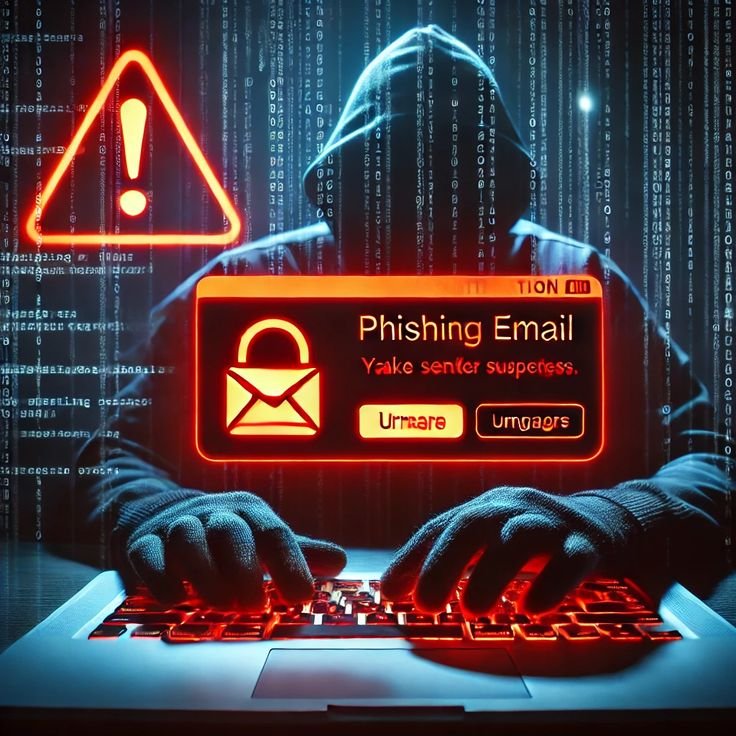
Even the best password won’t do you any good if your family gives it to criminals. Phishing attacks deceive people into giving up passwords and other sensitive information through fraudulent emails, websites or text messages.
Common Phishing Tactics Targeting Families
Fake urgent messages. “You MUST verify your password NOW, or Your account will be closed.”
Copycat websites. Links that look like “netflix.com” but are actually “netfIix.com” (using a capital i for an l).
Prize scams. “You won! Click to claim your prize and sign in!”
Impersonation. Emails that appear to be from teachers, coaches or friends seeking online credentials.
Teaching Kids to Recognize Phishing
Create a family game. Display real and fake emails, and ask young people to identify the red flags:
- Spelling or grammar mistakes
- Formal salutations (“Dear Customer” vs. their name)
- Urgent threats or too-good-to-be-true offers
- Strange sender addresses
- Requests for passwords or personal information
Reward correct answers. This makes safety awareness fun learning.
The Hover Test
Teach this simple trick: Hover your mouse (without clicking) on any link in an email before actually clicking it. Your actual destination URL is shown at the bottom of your browser screen. If it doesn’t correspond to where the email says it leads, then there’s a scam.
Building Long-Term Password Habits
Security isn’t a one-time setup. It gets easier as you form habits with it. For more comprehensive guidance on protecting your family online, visit Internet Safety Guide for additional resources and tips.
Monthly Security Checkups
Schedule a monthly family cyber health checkup on your calendar. During these 10-minute sessions:
- Look for any breach alerts about your password
- Update any passwords listed as weak
- Check new account’s 2FA settings
- Discuss any fishy web or email messages that arrived
- Enter any new accounts into the password manager
Age-Appropriate Responsibility
Gradually add responsibility as children mature with the use of passwords:
Ages 6-9: Parents have control of all password usage, but teach general concepts about not-sharing.
Ages 10-13: Kids begin to use the password manager with supervision. Parents maintain control.
Ages 14-17: Teens have their own accounts under the supervision of a family. Parents have emergency access.
Ages 18+: Independent with continued conversations about safety with your family.
Integrating Passwords Into Digital Citizenship
Tie password hygiene to larger discussions about:
- Respecting privacy (yours and others’)
- Building digital reputation
- Protecting personal information
- Your responsibilities as an online community member
When children comprehend the “why” behind rules, they’ll follow them when parents aren’t looking.
Frequently Asked Questions
How long does a family password need to be?
Shoot for a minimum of 12 characters, but 15 is even better. Passphrases that are longer and include random words work better than shorter but complex passwords.
Do streaming service account passwords work for siblings?
Yes, sharing passwords for family entertainment services like Netflix or Disney+ is generally acceptable. But everyone should have their own email, social media and gaming passwords.
What if my child doesn’t remember their password?
If you utilize a password manager, your family dashboard can be of assistance. For individual accounts, get to the “forgot password” part and reset via your email. That’s why it’s so important to safeguard email accounts.
Are password managers safe for kids?
Yes, with proper parental oversight. Family password manager plans come with features that allow parents to observe accounts, as well as teach kids good security hygiene. Begin with supervision, and slowly increase autonomy.
How frequently should we change the passwords for our family?
Change passwords only when necessary: after a breach, after sharing access or if you notice suspicious activity. Unnecessary changes usually result in weaker passwords. Work on building them right from the start.
What is the best way to teach young children about password safety?
Use simple analogies. Think of passwords like you think of house keys — you wouldn’t hand them to a stranger or leave them lying around. Play games to see what passes and fails as a strong password or weak password. Lessons should be short and repeated frequently.
Are we supposed to make a note of our master password?
No. Your master password should live only in your head. If you’re afraid of forgetting it, use the memorization hacks from earlier and make sure to do it daily until it comes naturally.
But what about a website that doesn’t provide two-factor authentication?
For these, have an extra strong password. Use 15 characters at least with a combination of numbers and letters. Ask yourself whether you even need the account if security is lax. Opt for services that offer protection to users.
Taking Action Today
You don’t solve internet safety once and move on. It’s a daily routine that guards your family’s digital life as much as securing a door to your home.
Start small. You don’t have to roll out all seven rules this afternoon. Pick one rule this week. Perhaps install a password manager for your family. Next week, set up two-factor authentication on your most essential accounts. Sit down with your children the next week to work out a family password policy.
These seven rules of thumb establish multiple layers of protection. Hackers look for easy targets. Families who are successful at this will be too hard to crack, and criminals will go looking for easier victims.
The online safety in your family begins with the decision you make today. Strong passwords, unique logins, two-factor authentication and smart habits build a fortress around your digital life. Teach these rules to your children, and you’re not just insulating them for today; you’re teaching them skills they’ll use for decades.
The internet is an incredible resource for teaching, communication and fun. With these password rules, your family can enjoy whatever online has in store while remaining safe from the dangers that loom at every corner.
Take the first step now. Pick one rule from this article and apply it today. Online security for your family is too important to let slide.