Here’s Why the Privacy of Your Family Matters in This Moment
The second home we never had is on the internet. Your kids are watching videos, your teens are friending and chatting — and you’re shopping or paying bills online. But here’s the scary part: Behind every click is a trail.
Companies track your family’s movements. Hackers look for weak spots. Strangers might contact your children. A home left unprotected is an open door.
Consider your privacy settings a digital lock on your doors and windows. They have the power to determine who sees your information, who can reach out to members of your family and what companies can track online.
This guide uncovers 10 potent privacy settings that your family loves. These aren’t complicated tech tricks. These are simple switches and controls that take minutes to set up but protect your family for years.
Together we’ll lock down your digital home.
Content Filtering – a First Line of Defense at the Router Level
Your Wi-Fi router is more than just a box that gives you internet. It’s more your home’s digital gatekeeper, really.
Nearly all modern routers have built-in parental controls that filter content through DNS-based URL filtering before it reaches any device. That’s protection for phones, tablets, laptops, gaming consoles and smart TVs in one fell swoop.
How to Activate Router Filtering
Open a browser and enter the IP address assigned to your router. Typical address is 192.168.1.1 or 192.168.0.1. Look at the label on your router if you’re not sure.
Search for headings such as “Parental Controls,” “Access Control” or “Content Filtering.” Plenty of major brands — Netgear, TP-Link and Asus included — provide them.
Create a profile for each family member. Set looser filters for teenagers and stricter ones for younger children. You can block whole categories, like gambling sites or adult content, or specific websites during homework hours.
Benefits That Protect Everyone
Filters at the router level are effective, even when kids go incognito. They cannot get around it by deleting cookies or employing VPNs on their phones.
You can time internet access. Weeknights might be an internet cut off of 9 PM. Weekends could allow later access.
The beauty of this approach? There is one setting that keeps any device on your home network safe.
Lockdown of the Privacy on Social Media for Young Users
Social networks scrape information about your children in great volumes. They follow interests, friendships, locations and browsing habits.
Default settings on platforms like Facebook, Instagram, TikTok and Snapchat are usually public. This leaves your family open to strangers, advertisers and worse.
Instagram Account Privacy Settings Every Parent Should Change
Open Instagram and tap the three lines in the top-right corner. Click on “Settings and Privacy,” then “Account Privacy.”
Go private right away. This way, posts and stories can be viewed by only approved followers.
Disable ‘Activity Status’, so people won’t be able to see if your child is online. Turn “Read Receipts” off for direct messages.
Limit who can comment, tag and mention your child under ‘Who Can’ settings. Switch everything to “People You Follow” or “Off.”
TikTok Family Pairing for Better Supervision
TikTok has a feature called “Family Pairing” that connects parent and child accounts.
In your child’s profile, click on Settings and scroll down to Family Pairing. You’ll scan a QR code from your own TikTok account to join.
Once it’s set up, you decide on screen time limits, restricted mode for comments and direct messages and the ability to search.
Set the account to private. Turn off location services. Turn off “suggest your account to others.”
Facebook and Messenger Kids Protection
Facebook has a bunch of other platforms that your family might be using. Each needs individual attention.
Give kids a “Messenger Kids” account instead of regular Messenger. You approve every contact. No strangers can reach out.
For regular Facebook accounts for teens, go to Settings > Privacy. Adjust “Who can see your future posts” to “Friends” only.
Check the “Timeline and Tagging” category. Manage who can post to your child’s timeline and see posts they’re tagged in.
Disable facial recognition. Disable tracking to your location in posts. Let your phone number and email address appear only to you.
Search Engine Safe Search: The Secret Filtering of Google
Google handles more than 8 billion searches per day. Many of those searches are happening in households with children.
SafeSearch prevents explicit content from appearing in search results. It’s not foolproof, but it effectively blocks the vast majority of inappropriate images and pages.
Activating SafeSearch on All Devices
On any device, visit google.com while signed into the Google account of your family.
Scroll to the bottom of the page and click “Settings,” then select “Search settings.”
Select the box next to “Turn on SafeSearch.” Scroll down and click “Save.”
For an added layer of protection against adult content, lock SafeSearch settings so that children won’t be able to turn it off. This involves logging in with a parent’s Google account.
Go to SafeSearch settings again. Select “Lock SafeSearch.” This generates a cookie that maintains the filter on that browser.
Video Safety with YouTube Restricted Mode
YouTube hosts billions of videos. Some of the titles aren’t suitable for kids.
Open YouTube, then click your profile picture in the top right corner. On the bottom, toggle on “Restricted Mode.”
It obscures the videos reported as adult content. It’s not perfect, but it does catch most offensive videos.
For more control, set up a YouTube Kids account if your children are under 13. The entire platform is for younger kids and everything there is curated.
Control All Apps’ Location Using Location Services
Every smartphone is always talking, and its location is constantly broadcasting. Apps, for their part, use this data to give directions, display nearby restaurants and tag photos.
But then location tracking fills in a detailed map of your family’s daily comings and goings. Where your kids go to school. What activities they attend. When your house sits empty.
iPhone Location Control for Families
Open Settings on the iPhone. Tap “Privacy & Security,” then “Location Services.”
You’ll see a list of every app that has ever asked for location access. Go through each one.
Switch most apps out of “Always” to “While Using the App” or “Never.” Games rarely need location access. Social media apps obviously don’t want it either.
On children’s phones, have location sharing set to share with parents alone. Open the Find My app. Select the child’s device. Turn on “Share My Location” with family.
This allows you to verify their safety by monitoring their location without broadcasting it to apps and companies.
Android Location Settings That Matter
On an Android device open Settings and tap “Location.”
Turn location on or off entirely. If you must leave it on, switch to the “Battery Saving” instead of the “High Accuracy.”
Tap “App Permissions” in the location settings. Review every app individually.
Set Instagram, Snapchat, TikTok, and games to “Deny” or “Allow only while using the app.”
You might want to keep maps, ride-sharing apps and emergency services under “Allow all the time.”
Turn off Google Location History. This way Google doesn’t keep a timeline of everywhere your family members go. Visit myactivity.google.com, tap on “Location History” and turn it off.

Email Filtering and Anti-Spam Configurations
Email is still a chief area of focus for scammers. You’re getting phished, malware links and inappropriate content spammed in your inbox every day.
Dangerous emails can easily go undetected by children. They click links without thinking.
Gmail’s Built-In Family Protection
Gmail has strong filtering, which most families never fully employ.
Click the gear icon in your Gmail inbox and choose “See all settings.” Click on the “Filters and Blocked Addresses” tab.
Set up filters that will automatically trash emails with specific words or phrases. Block senders with suspicious domains.
Turn on feature “Warn before displaying external images.” This stops tracking pixels from tagging along on your family’s email habits.
Enable two-factor authentication on each family email account. This requires a phone code as well as passwords.
Creating Kid-Safe Email Accounts
Create email accounts just for kids with Google Family Link or Apple Family Sharing.
These accounts are afforded added protections. Parents are alerted of account activity. Downloads and purchases can be enabled or approved.
Set up different email addresses for kids’ gaming accounts, school activities and social media sign-ups. This isolates potential problems.
If kids are signing up, never use the family’s main email. If that account is breached, everything gets laid bare.
Console Privacy Settings for Gaming You Might Be Overlooked by Parents
Xbox, PlayStation and Nintendo Switch link children to millions of players around the world. This presents both opportunities for play and peril.
Default settings frequently let anyone send a message to your child, can see what games they play and listen to their voice chat.
Xbox Privacy Configuration
Press the Xbox button on your controller to return to the Xbox Dashboard from any screen. Go to Profile & System > Settings > Account > Privacy & Online Safety.
Select your child’s account. Select “Xbox Privacy” to access a menu of precise controls.
Change “Others can communicate with voice, text or invites” to “Friends only” or “Block.”
Edit “You can share content” to “Block.” This is preventing sharing of screenshots or even videos that could share personal content.
Turn off “Others can see your real name.” Use gamertags only.
PlayStation Family Management
PlayStation requires creating a family manager account. The parent account manages all child accounts.
Select Settings > Family and Parental Controls. Select your child’s account.
Then adjust monthly spending limits to avoid surprises. Set the age level for games by ratings.
Manage how people communicate with “Restrict Communication and User-Generated Content.” Set it to ‘friends only’ for talking with pals.
Turn off share location in PlayStation Network Profile.
Nintendo Switch Parental Controls
Download the Nintendo Switch Parental Controls smartphone app to your phone. Connect it to your kid’s Switch console.
Set play time limits by day. The system has built-in warnings and can automatically suspend games when time is up.
Restrict games by age rating. Block social media sharing features.
Get monthly updates of what games your child played and for how long.
Smart Home Device Privacy Configuration
Life is easy with smart speakers, security cameras and voice assistants. They introduce new privacy threats as well.
These devices listen constantly. They collect voice data. Some have cameras that hackers could hijack.
Amazon Alexa Family Privacy Settings
From your phone, open the Alexa app. Tap “More,” then “Settings.”
Select “Alexa Privacy.” Regularly check voice recordings and history for deletion.
Disable “Help Improve Alexa” to prevent Amazon from saving and reviewing voice recordings.
Establish the profile by each family member’s voice. This enables Alexa to know who’s talking and apply proper limits.
Create Amazon Kids profiles to establish content filters by age. Children do not have access to certain skills, and they cannot make purchases without permission.
Google Home and Nest Security
Open the Google Home app. Tap on your account icon and then “Your data in the Assistant.”
Stop Google from saving recordings by turning off “Voice & Audio Activity.”
Turn on two-factor authentication for your Google Nest cameras. Change default passwords immediately.
Create activity zones that will not record any private areas such as bathroom windows or bedroom doors.
Only share access to your camera with family members you trust. Review the list monthly.
Family Computer Browser Privacy Extensions
Web browsers leak information constantly. Every page your family visits is being logged by websites. Advertisers create profiles of your children’s interests.
Browser extensions provide levels of protection that these built-in measures can’t touch.
Essential Privacy Extensions Everyone Needs
Get uBlock Origin for Chrome, Firefox, Safari, or Edge. This stops ads, trackers and malicious scripts.
Install Privacy Badger from the Electronic Frontier Foundation. It should also automatically learn to block more and more trackers.
Get HTTPS Everywhere to force a secure connection when surfing. This encryption is between your browser and the websites you visit.
For kids’ computers add Web of Trust (WOT). It also shows safety ratings near search results and websites.
Creating Supervised Browser Profiles
Chrome provides “Supervised Users” so parents can manage without looking over shoulders.
Click the profile icon in the upper right corner of Chrome. Tap “Add” to add a new supervised profile.
You get a weekly report showing the websites visited. Block specific sites remotely.
Create individual browser profiles for each family member. That way, you prevent cross-contamination of browsing histories and prevent younger children from accidentally accessing older siblings’ bookmarks.
App Store Limits and Purchase Controls
App stores contain millions of apps. Many are free but feature in-app purchases. Others cost money upfront.
Left unchecked, children can download anything or run up massive bills.
Apple App Store Family Settings
Open Settings on your iPhone or iPad. Tap “Screen Time.”
Select “Content & Privacy Restrictions.” Turn on restrictions.
Tap “iTunes & App Store Purchases.” Tap “Don’t Allow” for “Installing Apps” and “Deleting Apps.”
Tap “Don’t Allow” under “In-App Purchases.”
For kids who are a little older, select “Require Password” and set it as “Always Require.” That’s because everything you buy requires your approval.
Under ‘Content Restrictions,’ indicate age limits. Block apps that are rated above your child’s age level.
Google Play Store Parental Controls
Launch the Google Play Store app. Tap the profile icon, then “Settings.”
Choose “Family,” then select “Parental controls.” Toggle them on.
Configure maximum content ratings for apps, games, movies, TV shows and books.
Require authentication for all purchases. Open Settings > Require authentication for purchases. Select “For all purchases through Google Play on this device.”
Approve downloads on children’s devices using Google Family Link so they can be installed.
Messaging App Safety Configuration
Apps for text messaging like WhatsApp, Signal and iMessage link children to friends. They even open doors for strangers.
In group chats, children are exposed to unknown contacts. The photos you are sharing may include location information. Messages can forward without control.
WhatsApp Privacy Settings for Families
Open WhatsApp and click the three dots in top right. Select “Settings,” then “Privacy.”
Now, change “Last Seen” to “My Contacts.” This hides your child’s “last seen” status.
Turn on “My Contacts” or “Nobody” for “Profile Photo.”
Under “Groups,” choose “My Contacts” to prevent strangers from adding your child to groups.
Turn off “Read Receipts” so users can’t see when you read messages.
Implement “Disappearing Messages” as a default setting for all conversations. Messages vanish after seven days, automatically deleted.
iMessage Safety Features
Open Settings on iPhone. Scroll down to “Messages.”
For very young children, disable “iMessage” completely. They will still be able to send regular text messages.
For older children, you can toggle on “Filter Unknown Senders.” This separates messages from non-contact people.
Set “Screen Time” restrictions for Messages. Limit who can send messages at certain hours.
Turn on “Communication Safety” in Screen Time. It obscures inappropriate photos and gives children a warning before viewing or sending them.
Construction of a Complete Family Privacy Table
Here’s a handy guide to which settings defend against what:
| Privacy Setting | Protects Against | Difficulty Level | Time Needed to Set Up |
|---|---|---|---|
| Router Content Filter | Inappropriate websites, malware | Medium | 15-20 minutes |
| Social Media Privacy | Strangers, data collection, cyberbullying | Easy | 10 minutes per platform |
| SafeSearch & YouTube | Explicit content, inappropriate videos | Easy | 5 minutes |
| Location Services | Physical tracking, stalking, burglary | Easy | 10 minutes |
| Email Filtering | Phishing, scams, malware | Medium | 15 minutes |
| Gaming Console Privacy | Online predators, voice chat dangers | Medium | 20 minutes |
| Smart Home Controls | Eavesdropping, unauthorized access | Medium | 15 minutes |
| Browser Extensions | Tracking, malware, data theft | Easy | 10 minutes |
| App Store Restrictions | Unauthorized purchases, inappropriate apps | Easy | 5 minutes |
| Messaging Privacy | Stranger contact, group chat risks | Easy | 10 minutes per app |
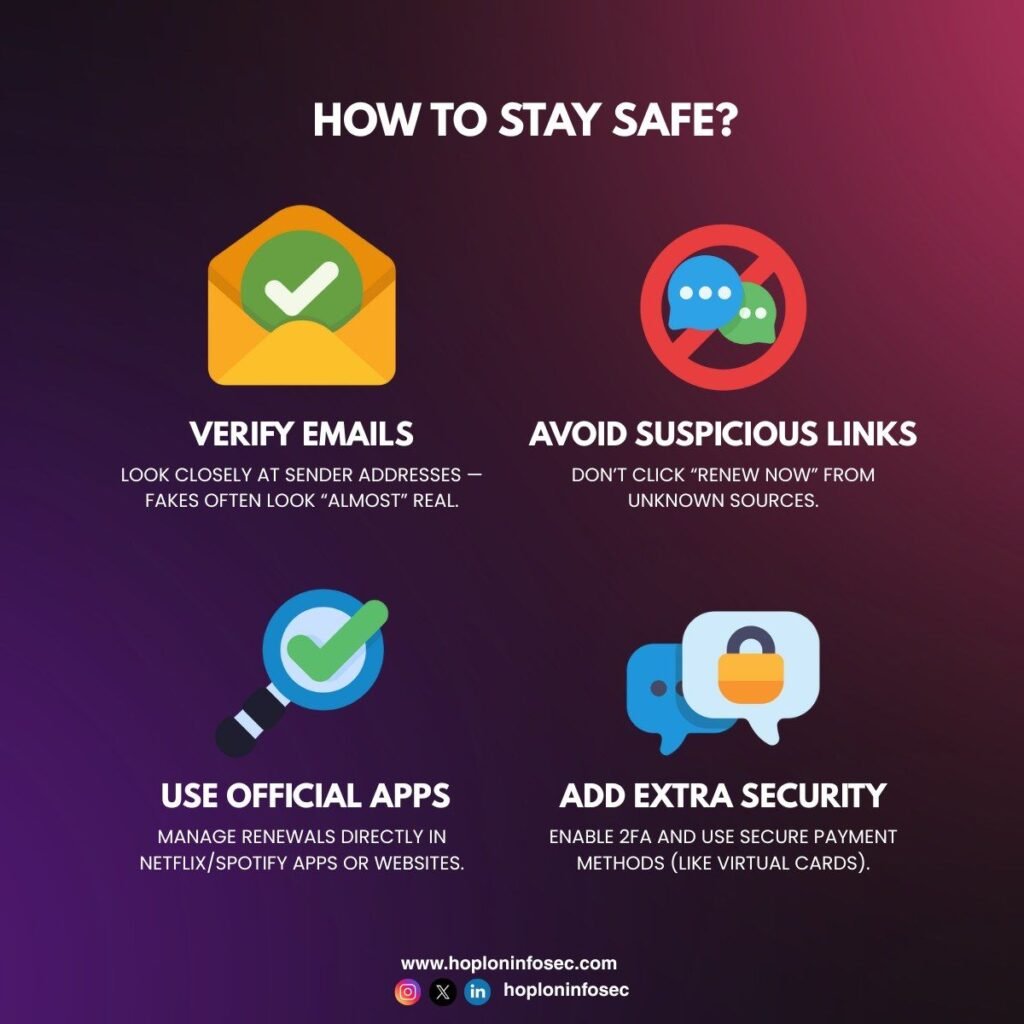
Common Privacy Mistakes Families Make
You’re not done setting privacy controls once. Technology changes constantly. New apps appear. Settings reset after updates.
These are some of the most common mistakes families make:
Overlooking the settings after software updates. Big iOS or Android updates will often return privacy controls to their default settings. Check everything again after updates.
Using the same password everywhere. If one account is hacked, a single domino sends them all tumbling down. Have a different password for each service. Password managers make this manageable.
Ignoring app permission requests. Children tap “Allow” without reading. Revisit the permissions once a month in device settings.
Oversharing on social media. Holiday photos inform thieves your home is vacant. In photos, school uniforms tell stories of where children learn. First-day-of-school signs show full names and who the teacher is.
Trusting default settings. Companies want data. Default settings are friendly toward companies, not families. Always customize privacy controls.
For more comprehensive guides on protecting your family online, visit Internet Safety Guide for additional resources and tips.
Frequently Asked Questions
How frequently should I check my family’s privacy settings?
We should be checking privacy settings quarterly — once every three months. And review after any significant app updates, purchasing a new device, or when children begin using new apps or services.
Can my kid bypass the privacy settings I’ve set?
They can, unless you lock them with the required parental control feature with a password. Apple’s Screen Time, Google Family Link and router-level controls all require a parent password to update. Basic settings are open to anyone who has access to the device.
Is your family’s privacy better with free VPN apps?
No. Many free VPNs either sell your data or are loaded with malware. Under the right conditions, they can skirt your safety filters. If you need a VPN, choose a paid, reputable service. Research thoroughly before installing.
Is it okay to monitor my teenager’s texts and social media?
This will depend both on your family’s values and your teen’s maturity level. The clear choice of many experts is transparent monitoring; teens know you’re checking. Foster trust with conversation, not covert surveillance. Focus on teaching digital citizenship.
Do privacy settings keep my family safe online?
Privacy settings are necessary but not sufficient. They need to be combined with open communications, digital literacy training and regular family conversation about being safe online. Train your kids to understand the hazards and for them to be smart.
What is the first privacy setting you should adjust?
Start with router-level content filtering. It covers all devices concurrently and still applies if your kids attempt to circumvent other control systems. Next up, address privacy and location services in social media.
Taking Action Today for Tomorrow’s Safety
Digital privacy isn’t really a one-time project. It’s a commitment to your family’s safety all year round.
You’ve covered 10 strong privacy settings that keep your family secure from dangers online. They each take just minutes to set up yet can provide years of protection.
Begin with the settings that matter most to your family. Perhaps your kids while away the hours on social media. Begin there. Maybe you’re most concerned about video game consoles. Tackle those first.
Don’t rush to do it all in a single day. That’s overwhelming and unsustainable. Select two or three of these settings this week. Add more next week. You’ll be fully protected in a month.
The internet will keep evolving. New threats will emerge. New platforms will launch. But the fundamentals remain consistent: control who accesses your information, keep what you can out of the system in the first place, and maintain a vigilant eye on your family’s digital footprint.
Your family deserves to be safe on and offline. It’s those privacy settings that allow for that kind of security. They give you peace of mind. They help children understand that privacy is important.
Let today be the day you regain control of your family’s digital life. In days to come, you will thank yourself for this upfront investment.
Children learn by watching. When you make privacy a priority, your children learn to keep and protect their own information. This is a skill that will benefit throughout life as technology evolves.
And your family’s digital privacy journey begins now. One setting at a time, one device at a time, one conversation at a time. What you do today means a safer tomorrow for everyone you care about.