The use of the internet is now part of every day life. We order online, chat with friends, do homework and control our home devices all through apps. But with all of these benefits also come a big downside: hackers.
Hackers are individuals who attempt to access your electronic devices, steal your information or cause harm on the internet. Big companies are no longer their only target. Regular families are now targets — the level of awareness is low; people don’t know how to protect themselves.
The good news? You do not need to be a tech wizard to keep your family safe. The good news is that a few simple actions can go a very long way in stopping hackers from compromising your personal information, photo collection, banking data and so much more.
This guide will provide you with 9 realistic tips that every family should adhere to in their everyday life. These tactics are simple to grasp — and even easier to implement. Let’s get started and make your family’s online experience safer, from today.
Generate Strong Unique Passwords For Each Account
Think of passwords as locks on your front door. Do you use the same key for your house, your car and your office? Probably not. The same goes for your online accounts.
One of the most dangerous common practices that families indulge in is using a single password for everything. When one password is compromised by hackers, whatever that credentials unlocks the hackers potentially gain control over everything. It’s the weak link in your email, social media and banking apps, as well as shopping accounts.
What makes a strong password?
A good password needs to be a minimum of 12 characters. Use a combination of uppercase letters, lowercase letters, numbers and special characters. Don’t pick anything easily guessable, like “password123” or your birth day.
Instead of memorizing 50 passwords and the associated security questions, use this trick: come up with a sentence you will never forget, and mix in some numbers along with the first letter of each word. ‘My dog Charlie runs in the park every morning’ becomes ‘MdClritpem2024!’
Password managers save the day
It sounds unworkable to keep track of dozens of complex passwords. That’s where password managers can help. Well, those are people who use special apps that already safely store all of those passwords in a handy place. All you have to do is remember one single master password.
A few of the more well-known names in available options are LastPass, 1Password and Bitwarden. Many of these have family plans in which everybody receives their own secure space, though parents can assist children with settings.
| Password Type | Strength Level | Example |
|---|---|---|
| Weak | Very Poor | password, 12345678, qwerty |
| Medium | Fair | Charlie2020, JohnSmith99 |
| Strong | Good | MdC!r1tp3m2024, 9#kL$mP2@qR5 |
Change your passwords every three to six months for critical accounts — like email or banking. If you learn about a data breach involving a service you use, change that password immediately.
Turn On Two-Factor Authentication Everywhere
Two-factor authentication (also known as 2FA) provides an extra layer of security to your accounts. Just imagine you have two locks here instead of one.
Here’s how it works: After you type in your password, the system requests a second piece of proof that it’s really you. That could be a code texted to your phone, a fingerprint scan or simply another typed number provided from an authenticator app.
Even if a hacker has your password, he can’t access your account without that second factor. They don’t have access to your phone or fingerprint, so they’re out of luck.
Where to enable 2FA
Begin with your most critical accounts:
- Email accounts (Gmail, Outlook, Yahoo)
- Banking and payment apps
- Social media platforms
- Shopping websites like Amazon
- Cloud storage services
Most websites currently support 2FA in their security settings. Find others that read “Two-Step Verification,” “2FA” or “Security Settings.”
Types of two-factor authentication
The most popular are text message codes. You’ll be sent a six-digit code over SMS, but that code expires after a few minutes. This approach isn’t the most secure, however, as text messages can sometimes be intercepted by hackers.
Authenticator apps are better. Usage of apps: Apps such as Google Authenticator, Microsoft Authenticator or Authy create codes that expire every 30 seconds. And they work even when you’re offline.
The best of them are physical security keys. These little USB devices plug into your computer or tap against your phone. They’re almost impossible for hackers to get around, but they come with a price and can also be lost.
Educate Your Family About Phishing Scams
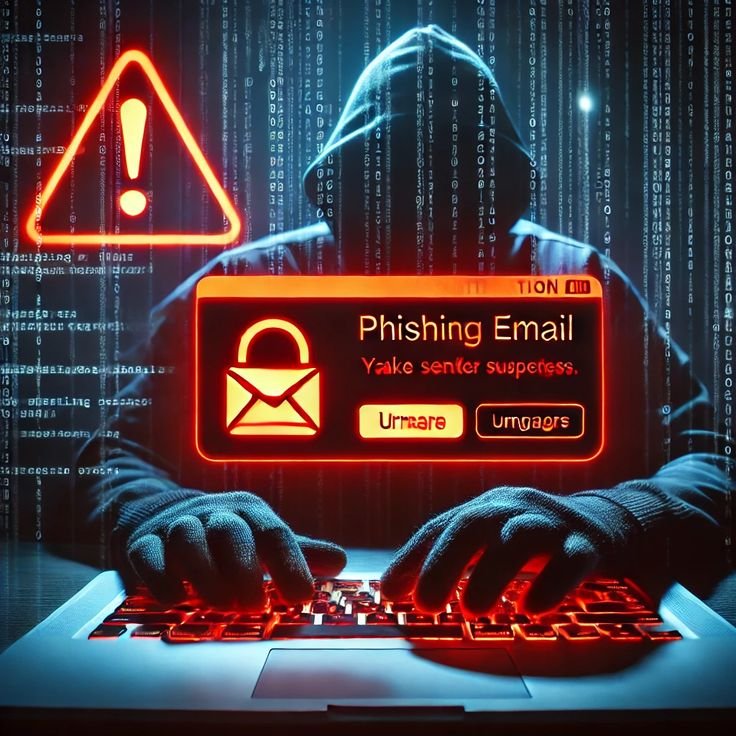
Phishing is when hackers pretend to be a trusted entity and trick people into sharing information with them. It’s a digital disguise, and it’s one of the most popular ways that families like yours get hacked.
These scams arrive in an email, text message or phone call and can even come through social media. They may appear to be from your bank, a package delivery company or even a friend.
Red flags to watch for
Any language that seems like it’s urgent there is a big red flag. Messages that say “Act now!” or “Your account will be shut down!” are trying to make you panic and act without thinking.
Another giveaway is odd email addresses. The message could claim to be from “Amazon,” but the email address is something like “amazon-support@random-website.com” rather than an official Amazon address.
Bad spelling and grammar errors are a hallmark of phishing attacks. Proper companies have skilled writers and editors. Scammers often don’t.
Strange attachments or links should cause suspicion. Don’t click on anything that you’re not 100 percent positive is authentic.
Create a family rule
Never click links in unexpected emails or texts. Rather, navigate directly to the company’s site by entering the address in your browser. If it claimed to be a message from your bank, log into your bank’s website the way you usually do and look for it there.
Preschool kids all the way up to high schoolers can learn how to ask permission before clicking on something that looks fishy. And let them know that they won’t get in trouble for asking questions. It’s better to ask than inadvertently allow hackers into your family information.
For more comprehensive guidance on protecting your family online, visit Internet Safety Guide for additional resources and tips.
Up-To-Date Devices and Software Are Key
Software updates can feel like a nuisance, but they’re actually one of your best defenses against hackers.
When people find security bugs in their software, companies issue updates (or patches) to address these problems. If you fail to apply these updates, hackers can take advantage of those known weaknesses to hack into your devices.
Set up automatic updates
The simplest solution would be to enable automatic updates for everything. Your phone, computer, tablet, smart television and even your internet router should all update themselves automatically.
On an iPhone or iPad: Go to the Settings app, tap General and then Software Update. Tap Automatic Updates to toggle the on/off switch; when turned on, iOS updates download automatically.
On Android devices, launch Settings > System > Advanced > System Update and turn on automatic updates.
You can enable automatic updates on Windows computers via the Settings > Update & Security > Windows Update.
Mac computers get updated with System Preferences > Software Update.
Don’t forget apps
Your apps need updates too. They help solve security issues as operating system updates do.
Turn on automatic app updates on your phone. On iPhone, you do this by going to Settings > App Store and turning on App Updates. On Android Open the Google Play store, click on your profile picture, select Settings > Network Preferences > Auto-update apps.
Update your router
One of the things many families overlook is the internet router, however this is your path to anything in your home. Visit your router’s settings page — in a web browser, most likely — and look for an “Update” button. And while some newer routers will all but do this for you automatically, older models often require a little manual labor.
Secure Your Home Wi-Fi Network
Your home Wi-Fi is the gateway to all of your family’s devices. Your neighbors (and other attackers) can connect to your network, if you haven’t secured it.
Change the default router password
When you got your router, it had a default username and password printed on the device. Hackers know these default passwords. They maintain lists of them for every router make and model.
Log into your router settings (the instruction manual shows you how) and set both the administrator username and password to something strong and unique.
Create a strong Wi-Fi password
Your router’s admin password is not the same as your Wi-Fi password. This is the thing you use to hook your devices up to the internet.
Make it at least 16 characters long with a mix of letters, numbers and symbols. Write it down and store it in a safe place at home. Do not share it casually with visitors, except as needed.
Use WPA3 encryption
In your router settings find security or encryption settings. Opt for WPA3 if it is available, otherwise select WPA2 if your router is older. Do not ever use WEP or an open network without a password.
| Security Type | Security Level | Recommended For? |
|---|---|---|
| Open (No Password) | None | Never |
| WEP | Very Weak | Never |
| WPA | Weak | Only if it’s the only option available |
| WPA2 | Strong | Yes |
| WPA3 | Strongest | Yes, if your router supports it |
Set up a guest network
Most of the latest routers allow you to set up a separate guest network. This provides internet access for guests without giving them sight of your family’s devices or files. It’s like having a waiting room instead of inviting strangers right into your living room.
Install Security Software on All Devices
Antivirus and security software are akin to a shield, repelling viruses, worms and other threats before they manage to damage your devices.
What security software does
These programs watch for known threats in files and on the web. They can sniff out suspicious behavior, block risky downloads and remove infections that might wriggle through.
Premium security suites will also contain:
- Live scanning that scans files as you download them
- Web protection alerts you when are about to visit malicious website
- Firewall-based protection that checks network traffic
- Parental controls: Get kids access settings to better manage what they can see
Choose the right protection
You’ll need strong antivirus software for Windows computers. Popular paid choices include Norton, Bitdefender, Kaspersky and McAfee. Windows Defender, which ships for free with Windows 10 and 11, is in fact quite good for basic protection.
While Macs are less likely to get viruses, they’re not immune from them. Malwarebytes and Intego are also good options for Macs.
Phones and tablets require security apps, too. There are security apps from reputable companies in both the Apple App Store and Google Play Store.
Family protection plans
Some security software companies provide family plans that apply to all your devices and entail one subscription. This is typically less expensive than purchasing individual protection for each device, and makes management simpler since everything is managed from a single account.
Keep Track of and Set Limits on the Things Your Kids Do Online
Children, in particular, are susceptible to online dangers. They’re trusting, curious and may not understand when danger looms until it’s too late.
Your goal is not to play spy on your children; it’s to educate them about safe activity online and protect them from real dangers.
Have honest conversations
Have age-appropriate internet safety conversations with your children. Let kids know some people online aren’t who they say they are. Instruct them never to give personal information, such as their full name, address, the name of their school and a phone number, to strangers online.
Ensure that they know to come to you if anything online makes them uncomfortable, and that they will not get in trouble for having told you.
Use parental controls
Most devices and services have parental controls. These let you:
- Cut screen time and schedule medications
- Block inappropriate content
- Approve or deny app downloads
- See what websites they visit
- Keep track of their online activity
Screen Time features are available on Apple devices. Android has Family Link. Windows has Microsoft Family Safety. Video game consoles such as Xbox and PlayStation also have their own parental controls.
Set up age-appropriate rules
Begin teaching young kids (of all ages under 10) to only use devices in common areas, where you can see the screen. They are too young for social media accounts, after all.
Preteens (10-12) may have more independence but still require supervision. It might be a good idea to follow their social media accounts (though not comment on everything they post).
Teenagers need privacy, but they also need boundaries. Teach good judgment rather than oversee everything. Keep conversations open so they are able to ask questions without feeling judged.
Be Careful With Public Wi-Fi
Using public Wi-Fi at coffee shops, airports, libraries and hotels is convenient — but dangerous. These networks are often unsecured, so hackers can readily capture your personal information.
The risks of public Wi-Fi
When you log on to public Wi-Fi, everything you type in can easily be seen by others on the same network. Hackers have specialized tools that they use to pluck out passwords, credit card numbers and private messages sent across these networks.
Some hackers go so far as to create sham Wi-Fi networks with names like “Free Airport WiFi” to deceive people into connecting. And once you’re on their phony network, they can see everything.
Better uses of public Wi-Fi
If you need to use public Wi-Fi, these are the rules:
Do not log into sensitive personal accounts, such as for banking or shopping sites. Wait — till you are on a secure home network.
Consider using a VPN (Virtual Private Network). That creates a secure tunnel for your data, making it unreadable even if someone intercepts it. Good VPN services are NordVPN, ExpressVPN and Surfshark.
On your devices, turn off automatic Wi-Fi connection. This stops your phone or laptop from joining networks without your knowing.
Use your phone’s mobile data if you need to, when available. It is safer than public Wi-Fi.
Then you can forget the network when finished. Head back to your Wi-Fi settings and have your device forget the public network, so it won’t get automatically reconnected later on.
According to the Federal Trade Commission, public Wi-Fi networks are prime targets for hackers, and users should exercise extreme caution when connecting to them.
Check Privacy Settings on Social Media and the Apps
Most apps and social media services harvest way more of your data than they need. They monitor your location, read your contacts and record your habits.
You can’t prevent apps all together, but you can manage the information they access.
Audit your apps’ permissions
Search on your phone to see what permissions each app has. Does the flashlight app absolutely need to be able to access your contacts? Why would a game ever need to know where you are?
On iPhone: Settings > Privacy & Security > Visit each category (Location, Contacts, Photos, etc.)
Android: Settings > Privacy > Permission Manager > Choose each type of permission to review them all.
Get rid of useless permissions. With the exception of a handful of apps, most will still function properly when they have fewer permissions.
Tighten social media privacy
Social media sets the bar high, by default sharing more than you likely intended. Spend time adjusting these settings:
Keep your profiles private so only friends who approve can see your posts. This is crucial for children’s accounts.
Turn off location tagging. You don’t want people to know where you are and where you live.
Check your friends list, email address and phone number — Who can look you up using the email address you provided? This is usually something only friends require.
If you are uncomfortable with using your facial recognition features, turn them off.
Regular privacy checkups
Apps and their privacy policies and settings change often. What you kept private last year may be no more. If you have time, set a reminder to check your privacy settings every few months.
Facebook and other companies let you use tools to perform privacy checkups, which walk you through key settings.
Frequently Asked Questions
How often do I need to reset my passwords?
Change your passwords every three to six months on important accounts. If you learn about a data breach at a service you use, change its password right away, regardless of how recently you modified it.
Is a free antivirus software good enough?
Free antivirus is better than nothing and it does provide some protection. But paid versions bring higher detection rates, real-time protection and additional features such as VPNs and parental controls. For families, it’s worth investing in the all-round protection of paid software.
Can people hack into what I am doing on public Wi-Fi?
Yes, they can. Data transmitted on public networks can be intercepted by anyone with minimal technical ability if it is not encrypted correctly. It helps keep you safe to use a VPN or otherwise not engage in sensitive activities over public Wi-Fi.
What do I do if I believe someone has hacked my account?
Change your password at once from a secure machine. If you are not already doing so, initiate two-factor authentication. Review your account for any signs of unauthorized actions. Reach out to the company support team. Do a security scan of your devices.
Is it safe to use one of those password managers?
Yes, a good password manager will protect your passwords with strong encryption. They’re way better than re-using the same password you know is weak across several sites, or jotting down passwords on sticky notes.
When should children have their own email addresses?
Most experts suggest holding off until 13, which is also when most social media platforms allow kids on the site. If you do decide to enable them, still make your child’s email for younger kids a family account — so that parents are the administrators and can log in and monitor.
Final Thoughts on Protecting Your Family Online
You don’t have to make internet safety complex or time-consuming. The 9 hints I have outlined in this article are a very good start to help make sure your family stays safe from hackers and other online threats.
Begin with the fundamentals: Strong passwords, two-factor authentication and software updates. Just these three will stop most hacking attempts. Then add to that fortress of security with a Wi-Fi service you can trust, security software and smart habits around phishing attempts and public Wi-Fi.
Remember that technology changes constantly. New threats arise and defenses change — or at least should. Continue to dialogue on internet safety with your family rather than making it a one time lecture. Keep up with new threats and adapt as necessary.
The amount of time you spend doing these things will be well worth your peace of mind. You will have confidence in the security of your family’s private information, photos, financial data and more from those who seek to do harm.
And most importantly train your family that internet safety is a shared responsibility. When children, teens and grown-ups all know the risks and practice good security habits, your household as a whole is much more difficult to hack. And in a connected world, that protection is priceless.